



Publish your first prototype
The DASHUND plugin step by step: your prototype live as soon as it’s sent. · 4 min readPublishing happens from Figma, with the DASHUND plugin: the prototype is live as soon as it’s sent.
In Figma: the DASHUND plugin
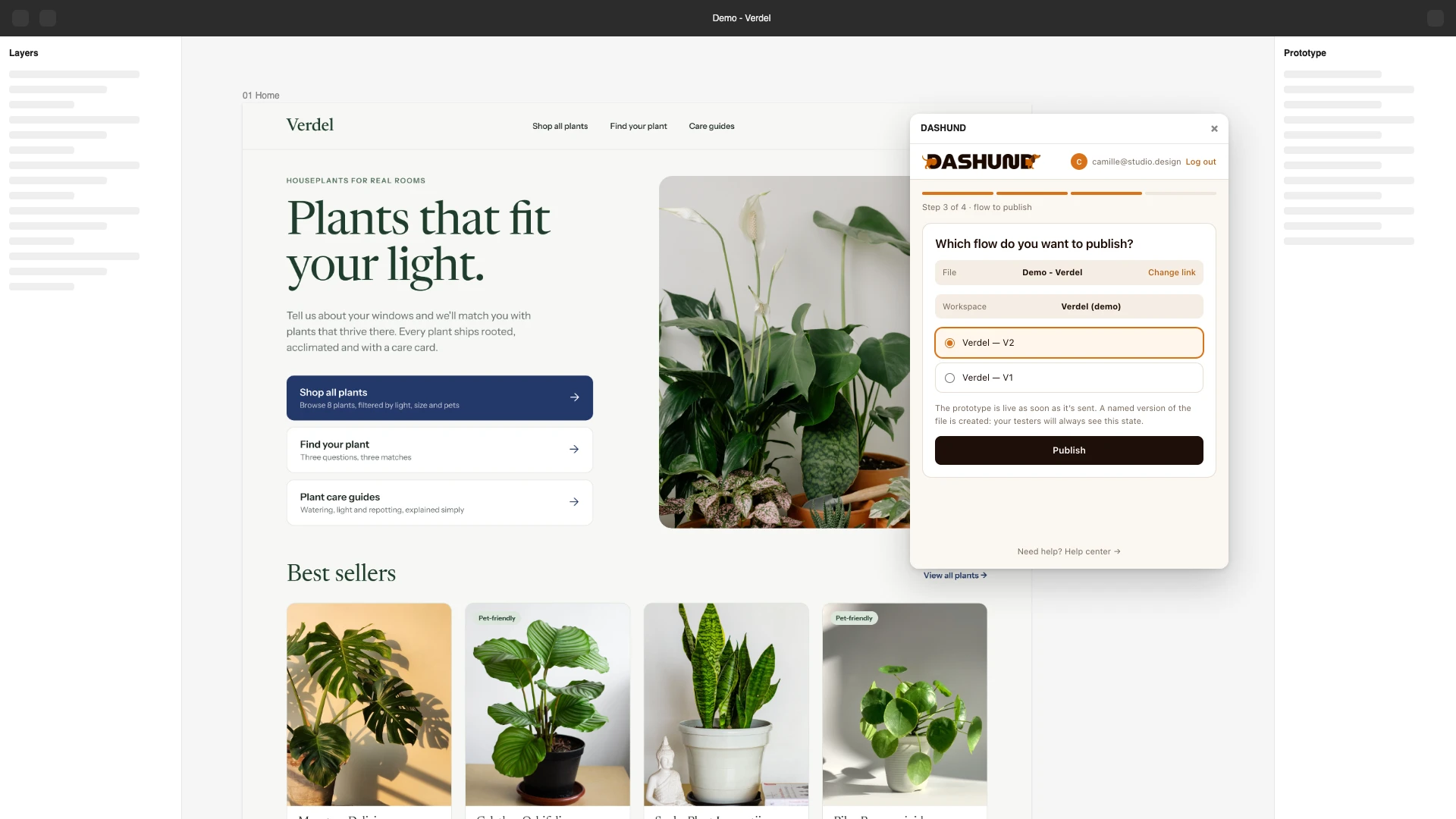
- Open your file, then Plugins → search for DASHUND in Figma Community and run it.
- Log in: click “Log in to DASHUND”. A page opens in your browser: click “Allow the plugin”. You only need to do this once.
- File link: in the Figma file, in Design mode, Share → Copy link, then paste it into the plugin. It starts with
https://www.figma.com/design/; the prototype presentation link (…/proto/…) doesn’t work. - Path to publish: choose the flow and, if you have several, the workspace to send it to.
- Publish: the plugin creates a named version, sends the screens and puts the prototype live. Keep the window open for a few seconds.
- It’s live: “View in DASHUND” opens its results, “Copy DASHUND link” copies the link to send to your testers.
In DASHUND: check the goal screens
DASHUND picked the end-of-path screens as goals. A banner invites you to check them in the prototype’s Settings; you can also test the prototype there in the preview, without your test runs counting. Choose the right measure.
Was this article helpful?