



One DASHUND link per audience
Add, name, turn off an audience, and compare how they behave. · 3 min readWhen you publish, DASHUND creates a first DASHUND link, the Main link. That’s the one you share, not the Figma link: it’s the one that measures visits. You can add other audiences, each with its own DASHUND link to the same prototype: LinkedIn, newsletter, client, internal panel… Each session keeps track of the audience it came through.
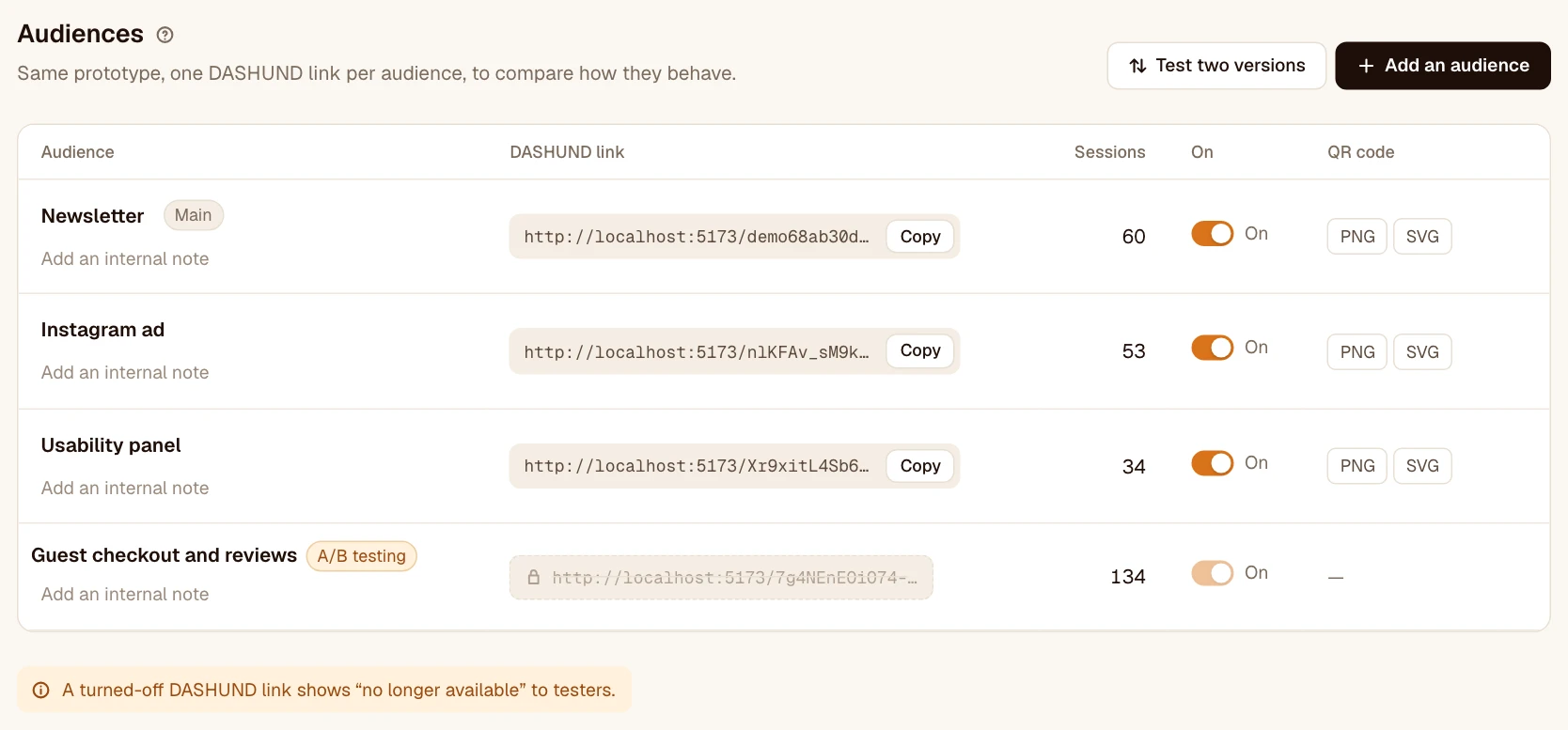
Add and manage an audience
- Add: Segments tab, “Add an audience”, type its name then Enter. Each name is unique within the prototype.
- Rename: click the name. The new name also applies to past sessions.
- Internal note: a memo for the team (“sent on March 12 to 300 subscribers”), invisible to testers.
- Turn off: the On / Off switch. A turned-off DASHUND link shows “This prototype is no longer available”.
- QR code: as PNG or SVG, for a poster or a presentation.
Compare audiences
The Performance by audience table gives each one’s sessions, median duration, completion and bounce. Click a row to filter every view on that audience, or use Compare to put two audiences side by side.
Was this article helpful?