



Roles and members
Owner, editor, viewer: who can do what. · 3 min readA workspace brings together a team and its prototypes. Each member has a role, chosen when invited and editable later by the owner.
The three roles
- Owner: full access. Manages the workspace name, the members and their roles, the subscription, and can delete the workspace.
- Editor: full access to prototypes (publishing, statuses, goals, audiences, paths, comparisons), none to the workspace.
- Viewer: views prototypes and their results, without changing anything. Ideal for a manager.
- Prototype viewer: only sees the prototypes that were shared with them, not the others, nor the members, nor the workspace settings. Ideal for a client.
Invite someone
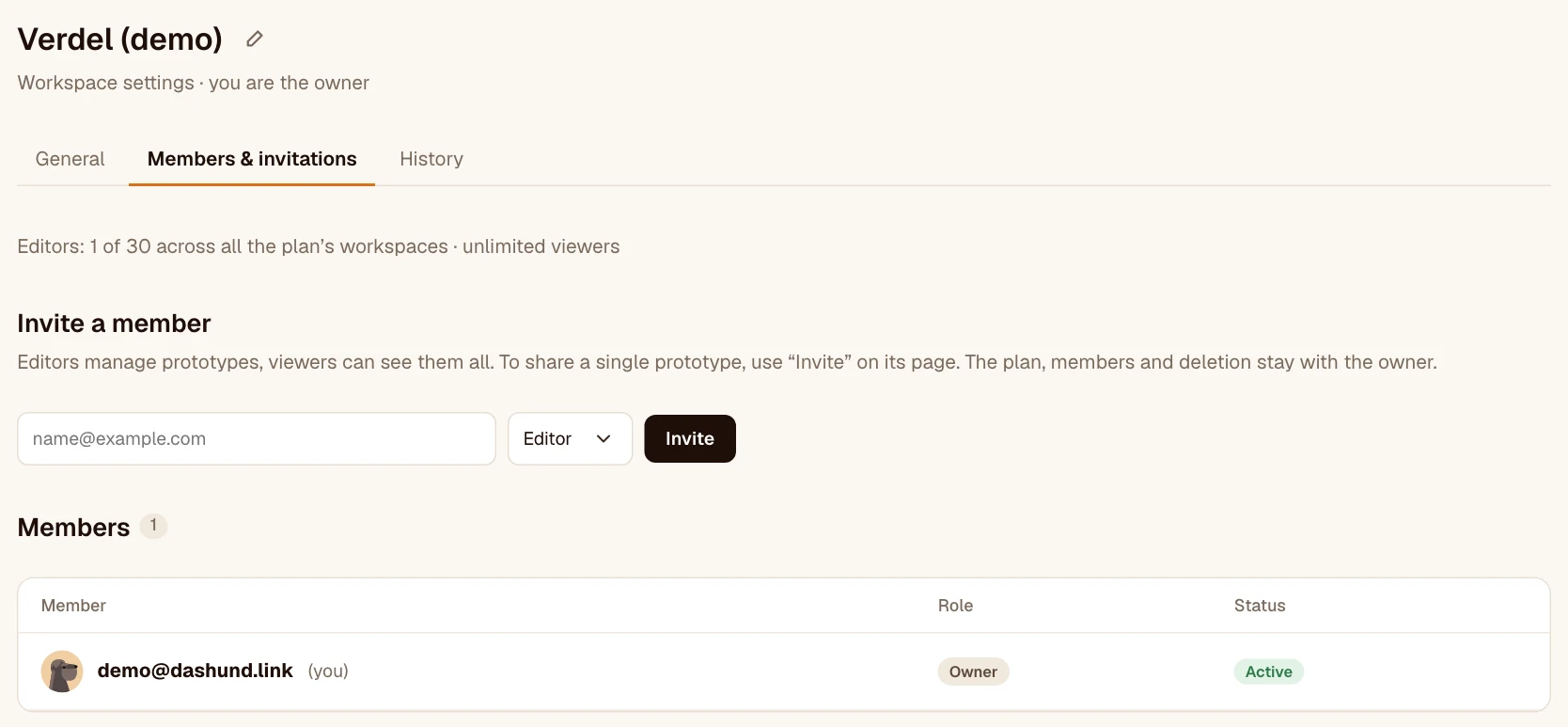
Open the workspace menu at the top of the sidebar, then Members & invitations: enter the email address, choose Editor or Viewer. The person receives a link valid for 7 days; they must log in with the invited email address to join the workspace.
Several workspaces
You can create other workspaces (one per client, for example), within your plan’s limit, and be a member of other people’s. You switch from one to another from the menu at the top of the sidebar.
Change owners
At the bottom of Members & invitations, the owner offers ownership to a member. The member receives an email and sees the offer at the top of the app: they accept or decline it within 7 days. Nothing changes until they accept; once accepted, the former owner becomes an editor.
To delete your account (My account), first transfer or delete the workspaces you share with other members; your workspaces with no other member are deleted with the account.
Removing a member or deleting a workspace is confirmed by pressing and holding the button for a few seconds: these actions are final.
Leave a workspace
Invited to someone else’s workspace, you can leave it: in its Settings (workspace menu, at the top of the sidebar), press and hold “Leave this workspace”, at the top right. A viewer of specific prototypes finds this button directly in the workspace menu. The owner doesn’t leave their workspace: they transfer ownership first. Your departure shows in the history.